· General · 9 min read
How I Use OpenClaw to Run My Pilot Life
A tour of the OpenClaw agent setup I've built up over the last 6 months to handle nearly all the busy work around my flying job: gate checks, flight planning data, expense claims, and everything in between. What it does, what it doesn't, and how I think about privacy.

Most pilots already use a few apps to make their flying life easier. The Electronic Flight Bag, an electronic logbook, a roster app like Merlot or CrewConnect. But over the past 6 months, I’ve been quietly building something a little more ambitious in the background: a small team of OpenClaw AI agents that handle nearly all the admin work around my flying job, including the work that’s demanded of me as the Union Chief. I haven’t manually filed an expense claim, or checked the departure gate myself in months.
This article is a tour of that setup. What it does, what it doesn’t do, and why I’m comfortable using AI for some workflows but not for others.
The Setup
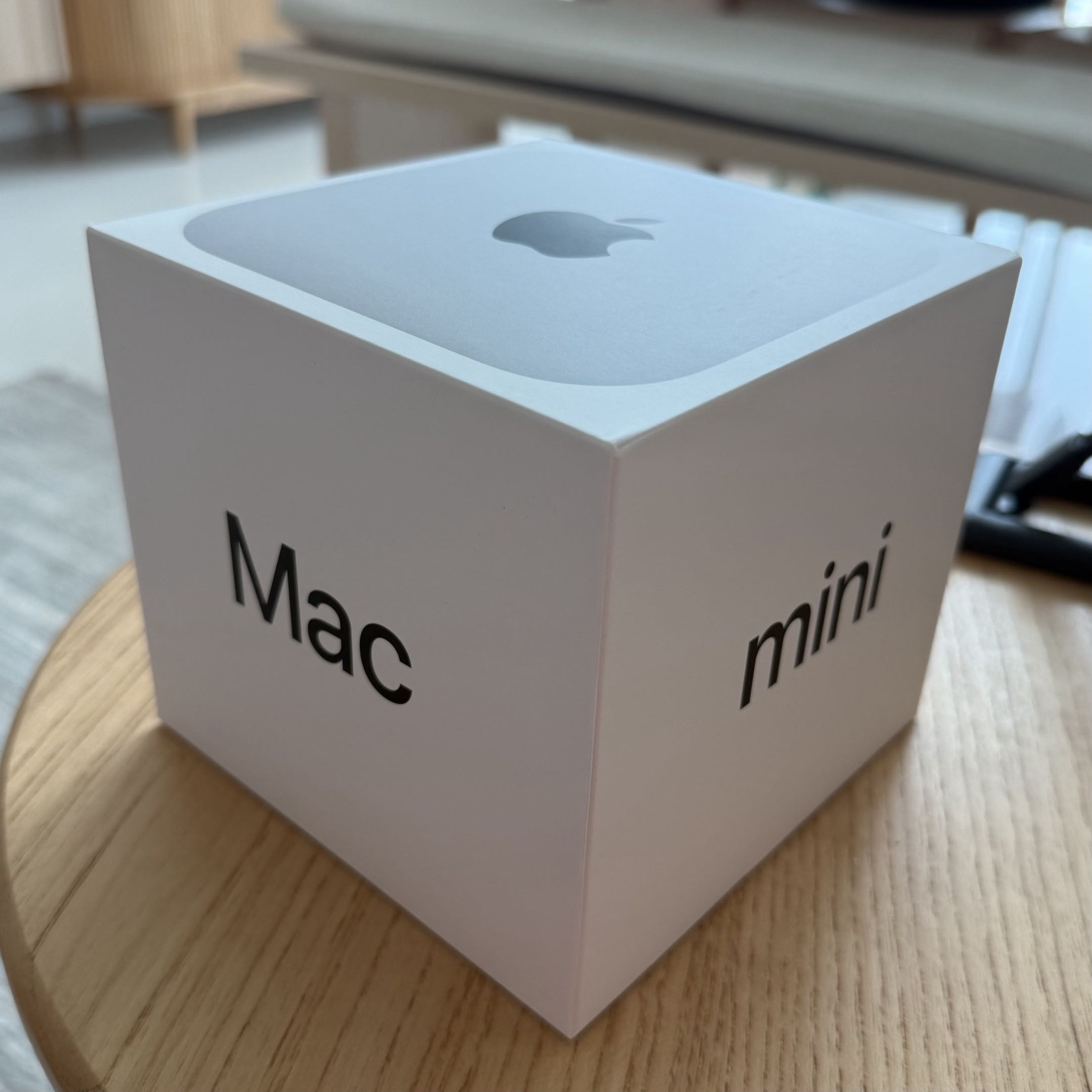
My setup runs on a Mac Mini that sits on my home network. It’s an always-on machine, and the hardware has been through a few iterations over the last 6 months. I started small: a VM running on my daily use Macbook Pro, which worked until I needed to bring the Macbook to work. I then bought an old M1 Mac Mini with 8GB of RAM from Carousell, and that worked for a while, until my agents ran out of RAM. I then upgraded to a 16GB M4. More recently, I moved to a 64GB Mac Mini, which is the box I’m running today. The reason for the bigger machine is simple: I wanted to be able to run local Large Language Models comfortably. More on the privacy angle later in this article.
The software running on it is called OpenClaw, an open-source AI agent framework that you install on your own machine rather than access through a web browser or app. Think of it as a personal AI assistant that actually lives in your house: it connects to your calendar, email, Notion, Discord and other tools, and can take actions on your behalf instead of just chatting with you. Most people think of AI as something you type prompts into through a chat window. OpenClaw flips that: the AI runs in the background, reading your inputs and executing tasks autonomously. I talk to my agents the same way I would message anyone. Short and conversational. Sometimes I just send a photo of a receipt with the caption “expense this”.
Meet Bro

The agent I talk to the most is one I’ve named “Bro”. Yes, that’s actually his name. And yes, I greet him like one too.
Bro lives in my Mac Mini. He could either be connected to a cloud LLM (Claude API for example) or a local LLM (Qwen for example). I communicate with him through his own email address or through our Discord server. He is the one running the pilot and personal side of my life, much like a very capable personal assistant. He started out as my only agent, doing a bit of everything. But as I piled on more workflows, a single agent doing everything started to feel clumsy, so I split things up. Today Bro is one of six agents I’m running, each with their own jobs, and most of them have nothing to do with flying. The other agents handle a startup I’m involved in, my financial research, content work and strategising better ways to earn miles. They occasionally talk to each other to coordinate in multi-agent projects.
The Roster Pipeline
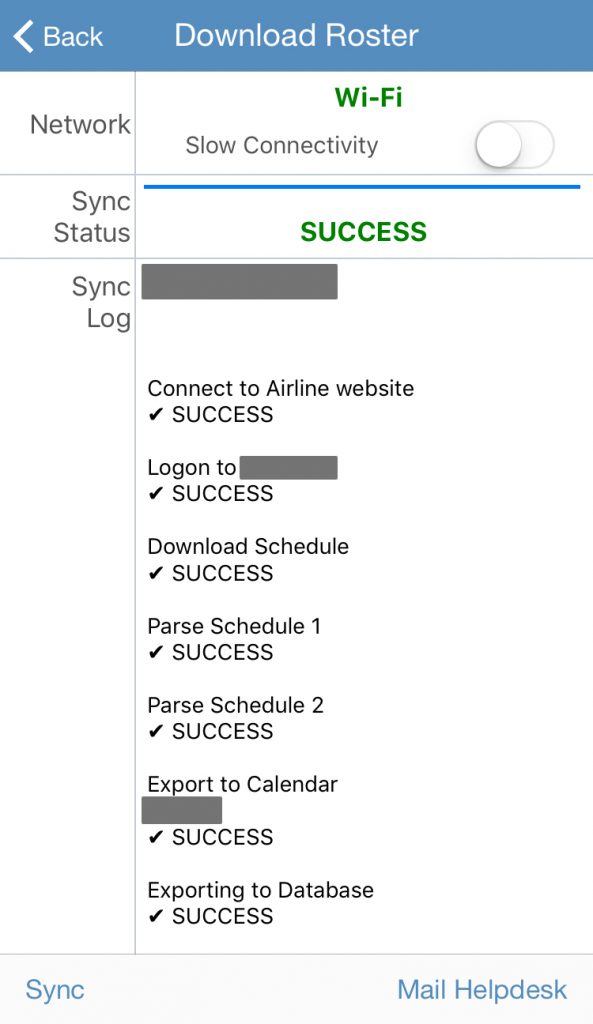
The single biggest time saver in the entire setup is what I call the roster pipeline. When my airline drops a new roster, my flights show up in my calendar. Once they’re in, the rest happens by itself.
Bro reads my calendar every night. For each new flight, he creates a Notion page, prefilling what he already knows. Flight number, departure and arrival airports, and scheduled times. He even does research through publicly available APIs, looking through NOTAMs and weather systems that might affect my flight. Thereafter, he schedules a set of gate-check crons (the next section is all about these). By the time I sit down at the study table before a trip, my flight page is already laid out. I just brief.
The Four Gate Checks
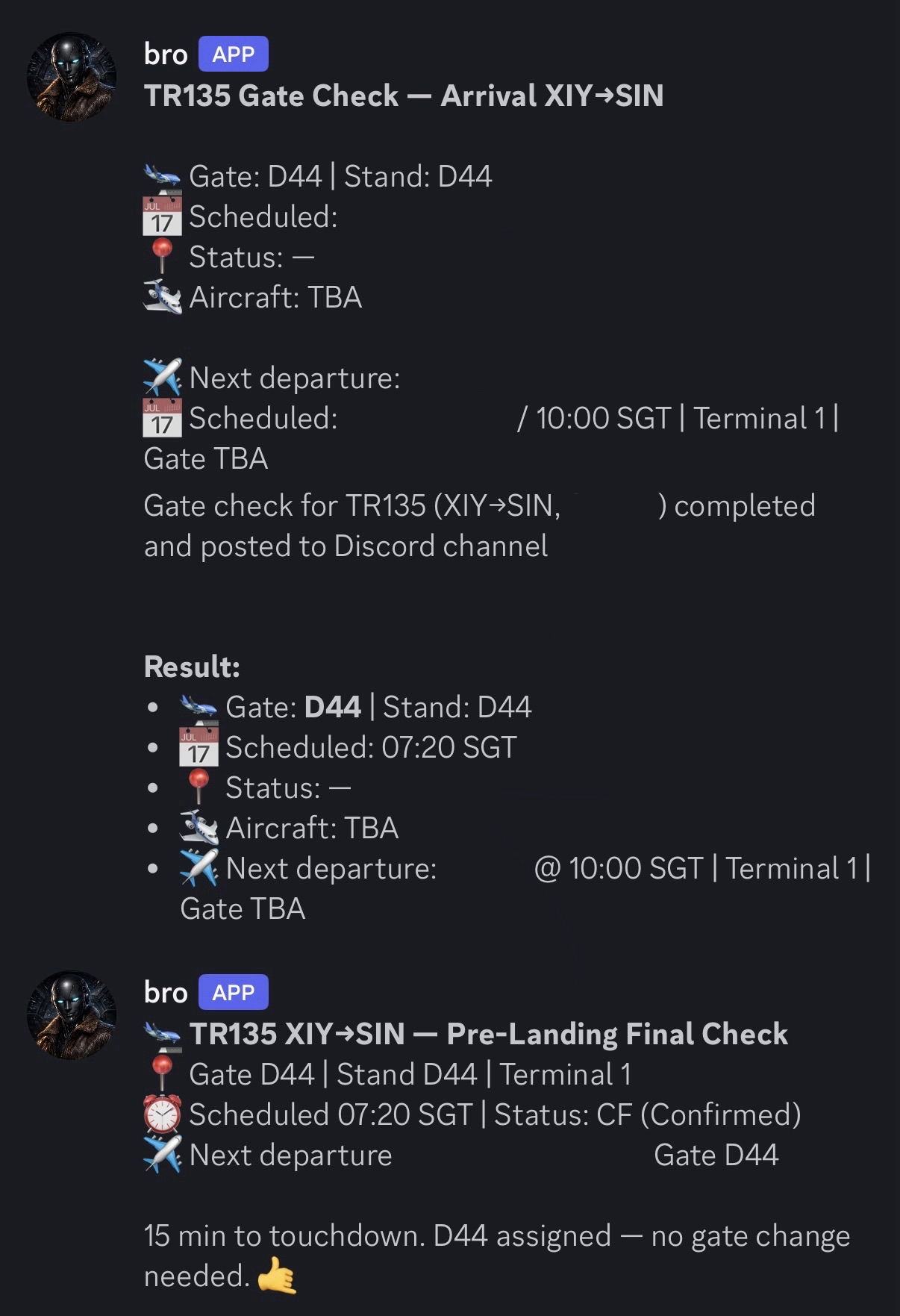
For every flight, Bro fires off four scheduled gate-check pings throughout the day. Each one is timed to a moment where I actually need the information.
The first ping fires while I’m still at home, getting ready. It’s the earliest look at the gate, the inbound aircraft, and any early signs of delays or trouble. If the inbound is running an hour late, I know before I leave the house, not after I’ve already shown up at the airport.
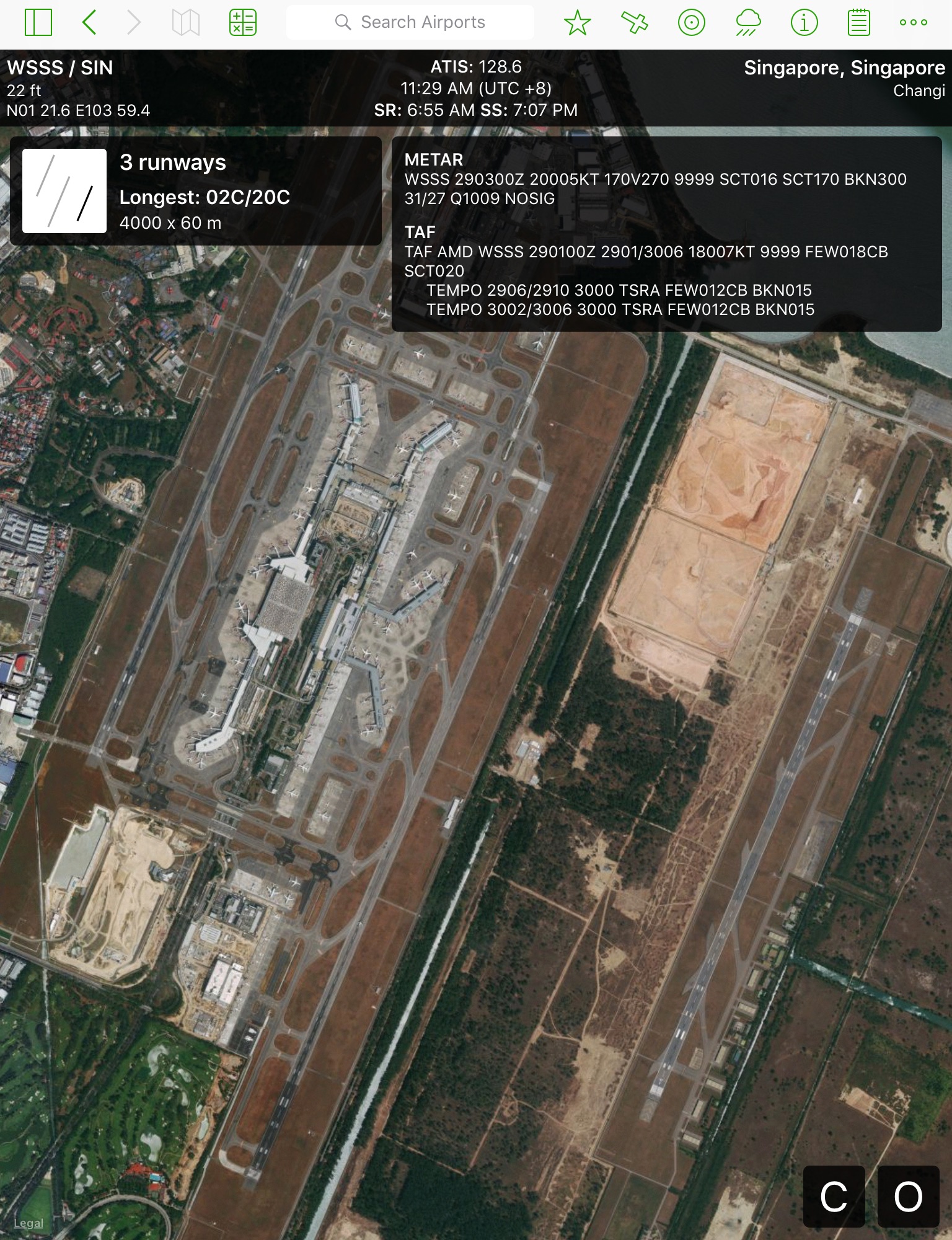
The second ping fires when I’m walking into the terminal. It confirms the gate hasn’t changed since the morning and tells me where to point my feet, and whether I might need to walk a little faster because the gate changed to somewhere that is a little further than anticipated. Changi Terminal is really big, especially when you are running late.
The third ping fires when I’m at the outstation, just before push back. It checks the expected arrival gate and details of the next flight number that’s departing using the same aircraft I’m flying.
The fourth ping fires after I land back in Singapore. It lets me know if the subsequent departure flight number and departure time has changed. I’ll use the information to decide whether I’ll need to shut down the Auxiliary Power Unit (APU) or keep it running.
Each ping is short, glanceable, and lands in Discord and also a customised iPhone widget (more about this below). The data comes from publicly available sources. By the time I think to check, the answer is already there. I almost never have to go look.
The Flight Widget on My Phone
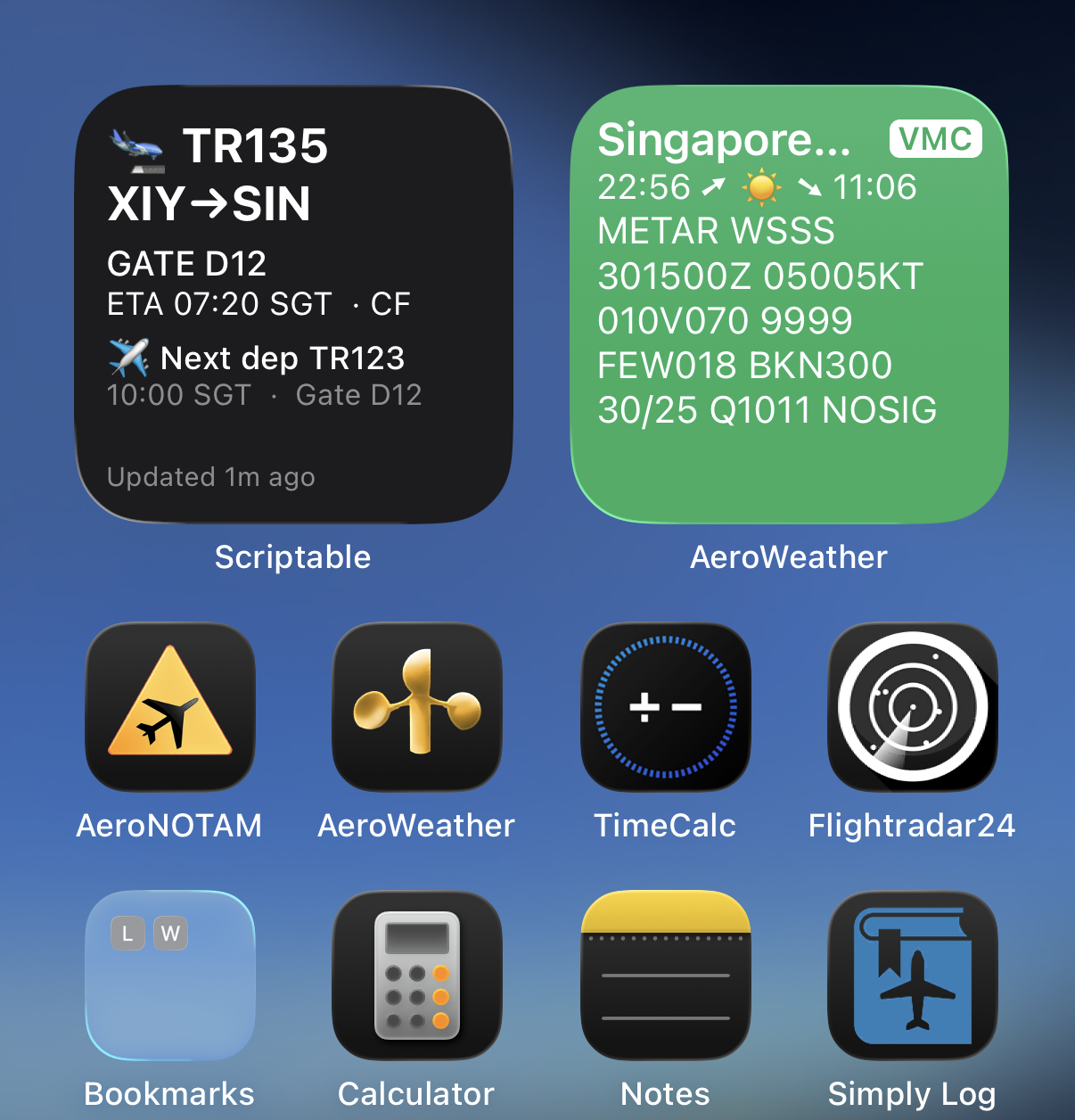
This is the feature I show off the most, even though it’s the simplest one. Bro writes my next gate’s information to Cloudflare KV. An iOS Scriptable widget on my home screen reads that value and renders it. I glance at my phone and see my gate, my flight number, and my scheduled departure time without unlocking the phone, opening any app, or tapping anything.
For a tool that took an afternoon to build, it might be the highest-leverage thing on my phone.
Flight Planning Data, Parsed
Bro helped me write a small script that extracts the essential planning data I need (route, fuel figures, alternates, winds, and cruise level) into the format I keep in Notion that facilitates my preparation work. Same data, but instead of me typing it, the script does the heavy lifting. I still review everything before I brief. But the act of typing twenty numbers into a Notion table is the kind of admin I’m happy to remove from my life.
”Wait, are you sending all this to ChatGPT?”
This is the question I get the most when I tell people about this setup. The mental model most people have is that an “AI app” means their data goes to a cloud LLM. That’s one way to use AI, but it isn’t the only way.
I use Bro, connected to cloud LLMs, as a co-developer. Bro helped me write the parsing scripts, the cron jobs and the integrations. Once a script exists, it runs locally on my Mac Mini with zero LLM in the loop. That’s how the bulk of my workflows run: plain old Python scripts doing predictable, deterministic things.
For the workflows that genuinely need a model in the loop, like summarising an unstructured email or pulling intent out of a long-winded message, I run local LLMs (like Qwen) on the 64GB Mac Mini for more privacy-focused work. The sensitive stuff (my roster, my planning data, my receipts) never leaves the home network.
That’s the balance I’ve landed on: get the productivity of AI, without handing your life over to someone else’s cloud.
The Daily Rhythm
Outside the flying side, there’s a small set of admin workflows that run quietly in the background.
When a tax-deductible expense lands in my inbox, I forward it to Bro. He files it into a Notion tax database, converts the currency if needed and archives the original email. When a non-tax document arrives that I want to keep, like a banking statement or an insurance policy, I forward it the same way, and Bro renders it as a proper PDF before filing it into Dropbox.
Two pings bookend my day. At 8am, I get a briefing on my calendar, the weather and anything that needs attention today. At 8pm, I get a recap of what tomorrow looks like, including any flights in the next 48 hours. Together, they keep me honest about what’s coming up.
What I Won’t Automate
There’s a short list of things I deliberately keep out of this setup.
- The flying itself, of course. I don’t (and I shouldn’t) use AI to fly the airplane, and I don’t expect to in my career. So if you are interested in becoming a pilot, it’s not too late!
- Anything proprietary. You don’t want proprietary information landing somewhere in the cloud.
- And anything where being wrong matters more than being fast.
The whole point of this setup is to remove the low-stakes admin from my life. No OpenClaw agent touches anything where a mistake carries real consequences. The high-stakes stuff stays human.
Chill Landing
This article isn’t really about AI taking pilot jobs. It’s about reclaiming the 30 minutes a day I used to spend on admin (gate checks, Notion-page-filling, flight planning and expense claims) and putting that time back into the rest of life.
The whole stack is mostly held together with hope, OpenClaw and a Mac Mini that runs hotter than it probably should. But it works, and every month it gets a little better.
If you’re a pilot and you’d like to nerd out about this, drop me a line on Telegram. Always happy to talk shop.